
Advanced Features
Filters & Exploration
A filter narrows the analysis to a cohort — "high-value orders that took longer than 7 days", "orders that were never invoiced". Every page in the project answers to the same set of filters, so narrowing in one place narrows everywhere.
What filters are for
Unfiltered, you see the whole process: useful for orientation, overwhelming for anything else. Filtered, you are looking at one group of objects and can ask what is true of them.
Most real analysis is a sequence of filters: narrow, look, narrow again, then compare the cohort you arrived at against the population you started from.
Creating a filter
Filters get created in four ways, and they all produce the same thing.
In plain language. Open the Active Filters panel from the funnel in the top bar and press +. You get a single input — "e.g. orders completed in the last 30 days" — and what you type is turned into a filter. The panel shows what it built, in words, so you can see whether it read you correctly.
From the map or the variants page. Click a node or an edge and use the With / Without toggle in its panel: objects that have this activity, objects that never take this transition. Select variants and use the same toggle to filter to exactly those paths. This is usually the fastest route, because you are pointing at the thing you mean.
From a chart. Click a bar in a node's event distribution, or a row in a what makes this group different card, and the corresponding filter is applied. On Explore and the Durations span chart, clicks pick instead: picks are outlined and wait for Apply in the top bar, so you can pick several values — on several cards — before anything reloads.
From the copilot. Ask a question and it applies the filter its answer is about. See Co-Pilot.
What you can filter on
Duration
An object's cycle time — a minimum, a maximum, or a band. A completed object is timed from its first activity to its finish; one still open is timed to the latest activity in the data, so a stuck order counts as slow rather than quick. "Objects taking longer than 14 days"; "objects between 5 and 10 days".
Attributes
Values on the object or on its events, with the operators you would expect: equals, one of, not equals, none of, greater or less than, contains, is null, is not null.
Event-attribute conditions can be scoped to a particular event type ("Order on Hold where block_reason = Credit limit exceeded") or left open ("any event of this object where…"). Positive operators are existential: they keep objects with at least one matching event. Negations are negated-existence: ≠ keeps objects with no event of that type where the attribute holds the excluded value.
Exclusions are null-safe. An object that never recorded the attribute at all is kept, so filtering out one value never silently drops the objects where the value was never written down.
Events
Whether an activity happened at all: has this event, has all of these, has any of these, has this event at least n times. The inverse is available too, which is how you find skipped steps.
Current state
Where an object is now, meaning the most recent of its own events in the project: "orders currently sitting at Order on Hold", or the inverse. Events of related objects woven into the map (an order's item confirmations, say) never count here, so an order stays "at Order on Hold" until an event of its own moves it on. An object with no events in the project has no current state and never matches.
Completion
Whether an object has reached a process end point: All, Completed or In-Flight. This is the toggle along the bottom of the map and the variants page, and it depends on terminal events being defined in Data Scope.
Paths
The route an object took, rather than what it contains:
- Require or forbid a transition — "went from Order on Hold to Hold Released", "never went from Hold Released back to Order on Hold"
- Directly (immediately next) or at any time later
- With an optional time bound: followed by, but only within two days
- Combined with all or any of several path conditions
Path conditions are about a population as well as a pattern. Requiring "A followed by B" constrains objects that have A; requiring "B preceded by A" constrains objects that have B. For a positive condition these are the same set; for a negative one they are not, which is why both exist.
Transition delay
The gap between any two specific events, whether or not they are adjacent: "orders where more than three days passed between Order Received and Hold Released".
Variant signatures
An exact-path filter built from a selection on the Variants page: keep objects that follow one of the selected paths, or keep those that follow none. Stored as the paths themselves rather than as a list of objects, so it keeps meaning as new data arrives.
Related objects
Conditions on objects one or more relation hops away — the thing case-based tools cannot do:
- Attributes — "orders from customers in the UK region"
- Aggregates — count, distinct count, sum, average, minimum, maximum: "orders with more than one item", "orders where total item value exceeds 10,000"
- Events on the related object — "orders whose invoice has a Payment Received event"
- Quantifiers — does any related object have to match, or all of them
- Multiple hops — "orders where the customer had another order with an expensive item"
Excluding on a related object means "keep objects with no related object carrying that value". An object related to both a matching and a non-matching one is excluded.
Time since an event
How long ago something happened, measured up to the latest event in the data: "orders whose last activity was more than 30 days ago", "orders blocked more than five days ago and still not released", "invoices created in the last 7 days". Typing "created 7 days ago" is read as within the last 7 days, and the filter says how it read you.
Comparisons
Two values on the same object compared with each other, rather than with a fixed number:
- an event's time against a date on the object — "goods issued after the requested delivery date"
- one event's time against another's — "invoiced before goods were issued"
- a total over related objects against the object's own value — "invoiced amount differs from the order value by more than 1%"
Timeframe
When, with four different meanings of "when":
- Contained in — the object's whole timeline falls inside the window
- Active in — the object had any activity during the window
- Started in — the object's first event is inside it
- Ended in — the object's last event is inside it
These give genuinely different cohorts, and picking the wrong one is a common way to get a puzzling number. A window can also be expressed relative to the data rather than to today, so "the last six months" means the six months up to the latest event in the project, not up to the wall clock.
Combining conditions
One filter can hold several conditions, and say how they go together:
- All of — every condition must hold
- Any of — at least one must hold
- Not — the condition must fail
Groups nest, so a filter can say "direct orders that are closed, or distributor orders that are delivered", or "blocked orders that were not released within two days". The easiest way to build one is to describe it in plain language and let Flow Myna write the structure.
Wherever a filter has more than one condition, its logic view draws the structure: nested All of / Any of / Not boxes around each condition in plain English. It appears under the chip in the Active now list on the Filters page, on every saved filter, and in the preview before you save a new one. Read it before you trust a number — which conditions go together is exactly the part a one-line description blurs.
How filters behave
Everything updates together
Applying a filter recalculates the whole project: node and edge counts on the map, which variants exist, the numbers on Health, Durations, Compare and Explore, and what the copilot is talking about. There is one cohort, and every page is a view of it.
Stacked filters combine with AND
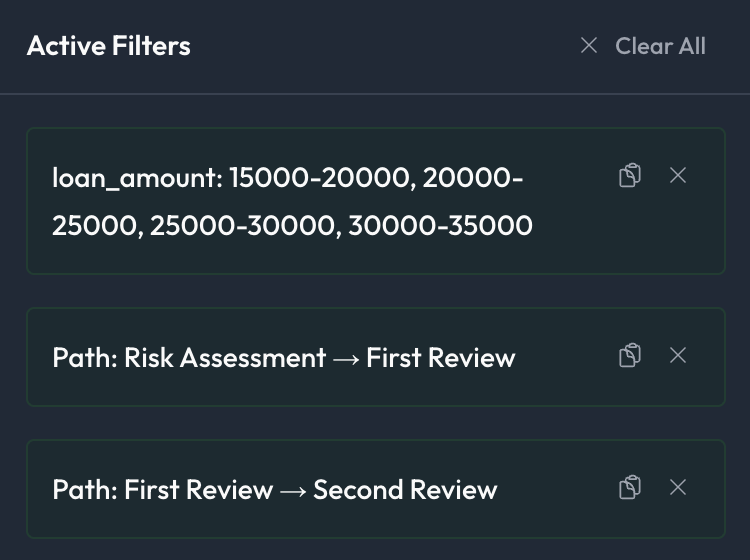
Several filters in the Active Filters panel at once means all of them hold. (Inside one filter, conditions can be combined with any / not as well — see Combining conditions.) Layering is the normal way to work:
All sales orders
+ order value over 10,000
+ took longer than 7 days
+ blocked at some point
Each step tells you something: the cohort count after each one shows which filter does most of the narrowing.
The header says when you are filtered
While a filter is on, a chip beside the filter button says so on every page — 150 of 1,000 sales orders · Explain — and clicking it opens Compare, which shows what sets that group apart from the rest. It shows the count when Flow Myna has already worked the group out: two or more filters together (a pinned filter counts), or a filter made on a different lens. A single filter on the current lens reads Filtered · Explain; the page itself shows the count. When the group, or everything outside it, is under 10 objects, the chip shows only the size, because there is too little to compare. A pinned filter or a crop on its own does not show the chip, it is hidden on phone-width screens, and on Compare itself it is not a link.
The panel
The Active Filters panel lists what is in force. Each filter chip carries three controls — a bookmark to save it, a copy control, and an × to remove it — and the footer has Clear all and the count. Beneath, a Saved filters section and a link to manage them all on the Filters page — which also shows the active filters in full, and can create one from a description. See Saved Filters.
They travel in the URL
Filters are encoded in the address bar, so a filtered view is a link. Copy it and whoever opens it sees exactly the cohort you were looking at, in the same project, with the same lens.
Cropping the process
Sometimes you do not want fewer objects — you want less of each object's timeline. Cropping trims every timeline to the stretch between two activities.
How it differs from a filter
A filter changes which objects you see. A crop keeps the objects and trims their events to a window, so durations and bottlenecks reflect only the segment you care about.
How it works
Set a start activity, an end activity, or just one of the two:
- Both — from the first occurrence of the start to the last occurrence of the end. Objects missing either, or where the start comes after the end, drop out.
- Start only — everything before the first occurrence of the start is trimmed; the rest of the timeline is kept. Objects missing the start drop out.
- End only — kept from the beginning through the last occurrence of the end. Objects missing the end drop out.
Start a crop from the Crop control in the map's right-hand rail, or from Crop start / Crop end on any node panel. An active crop appears alongside your filters as a chip, with an open side shown as …. Remove the chip to restore the full timeline.
Example
In Order to Cash, looking through Sales Orders, cropping from Order on Hold to Hold Released narrows every order's timeline to the time it spent blocked, and drops the orders that were never blocked. The durations and bottlenecks are then about the hold itself, not the whole order.
Sharing a filtered view
Because filters live in the URL, sharing an analysis is sharing a link.
With colleagues — "these are the slow high-value orders from Q1" plus a link beats a screenshot, because they can carry on from where you stopped.
For yourself — bookmark the views you check regularly, or better, save the filter so it has a name and everyone on the project can apply it.
With stakeholders — anyone with access to the project sees the same cohort. Access is per project, so this does not hand over the workspace. See Collaboration.
Working well with filters
Know your denominator. Always read the filtered count against the total. A pattern in 8 objects out of 1,000 is a curiosity; the same pattern in 400 is the process.
Add one at a time. Layering gradually tells you which condition is doing the work. Applying four at once tells you nothing except the final number.
Compare, do not just narrow. A cohort in isolation is hard to interpret. The Compare page puts it beside a baseline and ranks the attributes by how much they differ, which is usually the fastest route from "these are slow" to "and here is what they have in common".
Save what you will want again. If you have built a cohort worth returning to, save it: a named filter is reusable, shareable and pinnable, and it stops five people building five slightly different versions of the same question.
Next steps
Let the copilot build them
- Co-Pilot — describe the cohort, get the filter
See the effect
- Process Map — the cohort drawn
- Process Variants — which paths survive the filter
Keep them
- Saved Filters — name, reuse and pin a filter
- Collaboration — share a view with your team
Filtering is the analysis
The aggregate view tells you what your process looks like on average, and almost nothing worth acting on is average. Narrow to a group, find out what is true of it, and compare it with everything else.