
Core Workflow
Creating Your Workspace
A workspace is where your process data lives and where your team works on it. Everything else in Flow Myna — datasets, projects, conversations — sits inside one.
What is a workspace?
A workspace is the container for one body of process data. It is where you:
- Hold your data — datasets, and the objects and events they produced
- Work with colleagues — invite people and set what they can do
- Create projects — focused analyses built on that data
- See what the workspace holds — counts of events, datasets and seats
Workspace vs project
The split matters, and it is the one thing worth understanding before you start.
Workspace — the data layer
- Holds the raw process data
- Contains one or many datasets
- Shared by everyone you invite
- Supports many projects
Project — the analysis layer
- A scoped view of that data: chosen object types and event types
- Its own filters, saved filters, metrics and copilot conversations
- Several projects can read the same data with different scopes
Put another way: the workspace is the database, and projects are the different questions you ask of it.
Creating your first workspace
Step 1: Open the workspaces page
After signing in you land on Workspaces, which lists every workspace you belong to. Click New Workspace.
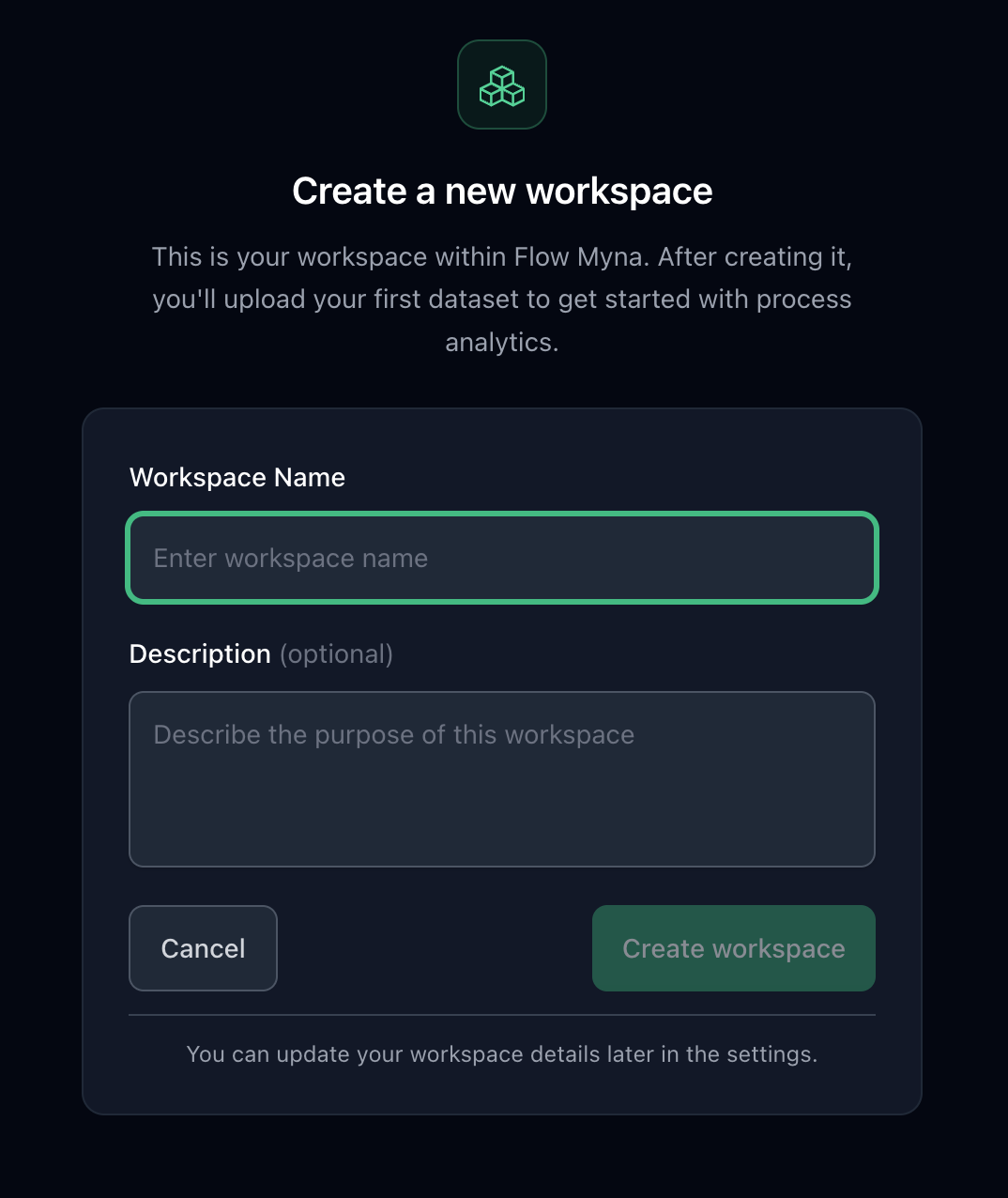
Step 2: Name it
Two fields, one of them optional:
- Workspace Name — required. Something durable: "Financial Operations", "Customer Support", "Supply Chain".
- Description — optional, but worth writing. It appears on the workspace card, so it is how colleagues work out what a workspace is for.
Both can be changed later in settings.
Step 3: Create
Click Create workspace. It is created immediately and you land on its overview page, ready for a first dataset.
Name it for the area, not the analysis
Prefer "Financial Operations" over "Q4 order analysis". The workspace holds data that will outlive any one question; the questions belong in projects, which are cheap to create and easy to throw away.
The workspace overview
The overview page tells you what the workspace holds and what has been happening in it:
- Four counts across the top: Members, Object Types, Event Types and Projects
- Recent Projects, with a link to all of them
- Recent Activity — projects created, datasets created, people joining
- Quick Actions — import data, create a project, invite people, open settings
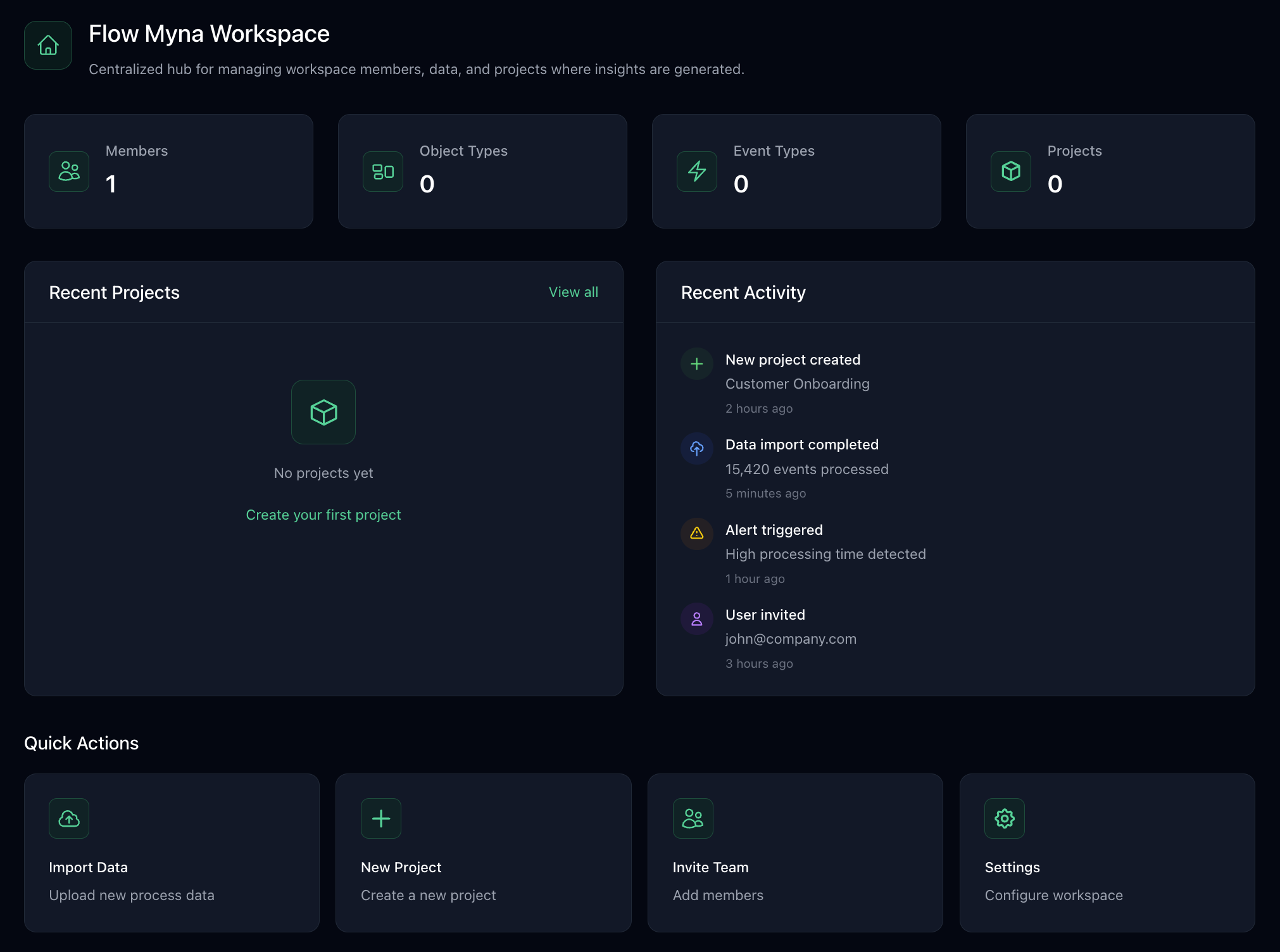
The left-hand rail moves between the workspace's sections:
Data Management — every dataset in the workspace, with its process type, source format and last upload, plus Create New Dataset to start the upload wizard. It also carries the running totals: object types, objects, event types, events.
Projects — every project in the workspace, and where you create a new one.
People — who has access, what role they hold, and any pending invitations.
Settings — the workspace's own name, description and website, plus usage and billing.
Workspace settings
Workspace Details holds the workspace name, description and an optional website URL. A Danger Zone at the bottom is where a workspace gets deleted.
Usage shows what the workspace holds today — events stored, datasets, seats, and copilot questions asked in the last 24 hours. These are counts rather than allowances: nothing in a workspace is metered or capped from this page.
Billing is not self-serve yet. There is no plan to pick or invoice history to read in the product; plans are arranged with us directly.
Inviting people
Open People and invite colleagues by email. The page shows total members, active members, pending invitations and how many admins the workspace has. An invitation that has gone stale can be resent.
Roles
Owner — the person who created the workspace. Full access, including settings, and the only role that can delete it.
Admin — full access to the workspace and its settings, and can invite and remove people.
Member — can create and manage projects, upload and manage data, and see everything in the workspace.
Guest — access to specific projects rather than to the workspace as a whole. This is the role for consultants, partners and stakeholders who should see one analysis and nothing else.
Someone who joins through a project invitation, rather than a workspace one, appears here as a Guest and holds the Collaborator role platform-wide: they can work in the projects they were invited to — explore, filter, save filters, use the copilot — but cannot create workspaces.
Projects have their own membership on top of this, so someone can be an admin of one project and a plain member of another. See Collaboration.
Changing and removing
Change a role from the dropdown in the member's row. Removing someone revokes their access immediately.
Removing people is immediate
When you remove a member they lose access to every project in the workspace straight away. If they own work others rely on, hand it over before removing them.
Working with more than one workspace
When a second workspace earns its keep
Good reasons
- Genuinely separate business areas — HR, sales, operations
- Data that different groups of people should not see
- Separate cost allocation
Reasons to use something else instead
- Different time periods — use a filter
- Different views of the same process — use a project
- Different people looking at the same data — use project membership
Switching
The workspace name in the top-left is a switcher: click it to see every workspace you belong to and move between them. Projects and data follow the workspace you are in.
Keeping things tidy
- Name workspaces consistently, for example "[Area] — [Process]"
- Keep descriptions current; they are what colleagues read on the workspace card
- Review the member list when people change roles or leave
Troubleshooting
A colleague cannot see the data
Check that they accepted the invitation, that they are signed in with the address it was sent to, and that their role covers what they are trying to do. A Guest sees only the projects they were added to. If the invitation has gone stale, resend it from People.
A workspace is missing
Use the workspace switcher in the top-left rather than the browser history: the list there is authoritative. If it is genuinely absent, check you are signed in with the right account.
Next steps
Upload your first dataset
- Uploading Your Data — bring in CSV, XES or OCEL 2.0 data
Create your first project
- Creating a Project — set the scope for an analysis
Get the concepts straight
- What is Process Mining? — the fundamentals
- Quick Start Guide — data to first answer
Ready to add data?
The workspace is the container; it is empty until you put something in it. Next: upload your process data and let the wizard work out the object and event model.