
Analyzing Your Process
Process Map
The Map is your window into how the process actually runs. It is drawn from your event data, not from anyone's flowchart, so it shows the real routes: the common one, the rework loops, the exceptions nobody documented.
Understanding the process map
Flow Myna reads your events and draws the flow it finds. Above the canvas you always see what you are looking at: how many event types are on the map, and how many objects they belong to.
What you see
- Nodes — activities, drawn as boxes
- Edges — transitions between activities, drawn as arrows
- Numbers — how many objects took each step and how long they waited
- Paths — every route objects actually take, not just the intended one
Alongside the route you expect, the map surfaces the routes you did not draw: exception paths, rework loops, work running in parallel, and the transitions where things sit.
Switching the lens
Because Flow Myna is object-centric, the same data can be seen through different objects. The lens is the object type the map is currently centred on: it shows that object's flow, treating those objects as the things moving through the process.
The object types in the project appear as chips in the top-right corner of the map. The highlighted one is the current lens; click another to re-centre the map on it.
- Look through Sales Orders to see the order flow
- Switch to Customers to see the same events from the customer's side
- Switch to Invoices to follow the billing journey
Each lens re-centres the map on that object type's timeline. A project opens on a sensible default lens and you can change it at any time.
Bringing in related events
You do not have to pick one object type and live with it. Open the Events & parallel tracks panel from the right-hand rail and you get Events in Graph: every event type in the project, grouped by the object type it belongs to. The lens object's own events are ticked; events from related objects are listed under their own object type.
Tick an event type from a related object and its events are interleaved onto the current lens. Viewing Sales Orders, you can bring in Delivery and Invoice events and read the whole order-to-cash story on one map without leaving the order's perspective.
Why this matters
Switching the lens answers questions a case-based tool cannot: "how does this look from the customer's side?" or "where does the hand-off between Order and Delivery actually happen?" It is the same data, re-framed around whichever object you care about.
Parallel tracks
Some processes do not run in a line. An approval runs beside fulfilment; three sub-assembly lines run at once between the same two milestones. Laid out as a single sequence, work like that looks like chaos: dozens of orderings of the same steps, none of them meaningful.
Flow Myna models these as parallel tracks. Where the data supports it, the map detects the tracks for you and offers a one-click suggestion; you can also declare them by hand in the Events & parallel tracks panel: under Events in Graph, name each track and pick the activities that belong to it.
Once tracks are declared, the map draws them as lanes:
- each track gets its own colour, and every node in it carries the track name
- dashed edges mark where the process forks into the tracks and where it rejoins
- the legend names the critical path — the track the process is actually waiting on
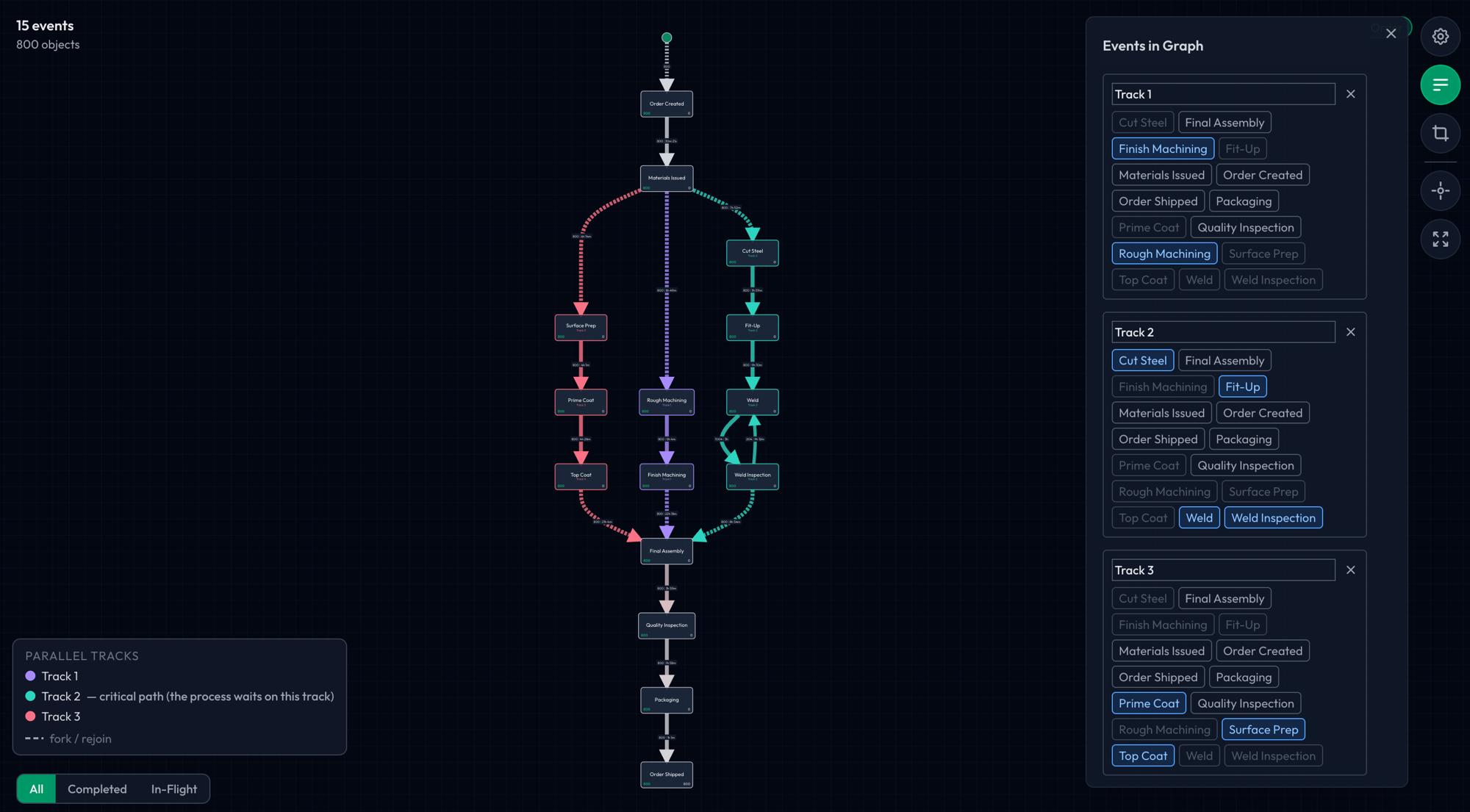
The distinction matters because shortening a track that is not the critical path buys you nothing. Variants and the copilot understand tracks too, so two objects that did the same work in a different order within a lane are recognised as the same behaviour rather than counted as different variants.
Reading nodes and edges
Nodes (activities)
Each node is an event type — an activity that happens in your process. A node shows its name and two numbers along the bottom:
- Green, on the left — how many objects reached this activity
- Grey, on the right — how many are still sitting here, having reached this step without moving on
That second number is the one case-based tools tend not to give you. It tells you not just what happened historically, but where work is right now.
Nodes are outlined in the colour of their parallel track where tracks are declared, and highlighted when you select them.
Edges (transitions)
Each edge is a transition: objects moving from one activity to the next. The label on an edge reads count | duration — how many times that transition happened, and the typical wait between the two activities.
Two visual cues carry meaning:
- Thickness — volume. Thick edges are the common routes; thin ones are exceptions.
- Colour — waiting time, on a scale from grey to red. The redder an edge, the longer objects typically sit before making that move.
Edges that point backwards are rework loops. A node with several outgoing edges is a decision point. A missing edge you expected to see means a step is being skipped.
Reading the flow
Start at the green entry dot and follow the thick edges: that is the route most work takes. Then look at the thin ones and the red ones. The thin edges tell you what the exceptions are; the red ones tell you where the time goes.
Node and edge detail
Click a node or an edge and a panel opens with the detail behind the number.
Node panel
- Incoming and Remaining — the two numbers from the node, in full
- Inflow breakdown and Outflow breakdown — which activities objects arrived from, and where they went next, with counts
- Event distribution over time — a bar per time window; click a bar to filter to the objects that had this event in that window
- Objects — the list of objects that reached this activity, searchable, with a With / Without toggle that turns the node into a filter
- Crop start and Crop end — set this activity as the start or end of the segment you want to look at
For durational events the panel also shows the service time: how long the activity itself ran, as a median and a mean, plus how many are still running.
Edge panel
- Objects — how many distinct objects took this transition
- Transitions — how many traversals, when an object took it more than once
- Median wait between activities — the typical gap, with a distribution plot underneath so you can see the spread rather than trusting one number
- The object list, with the same With / Without toggle: filter to objects that take this transition, or to those that never do

Durational events
Where your data records a start and an end for an activity, Flow Myna models the event as a duration rather than an instant, and the map separates two things that are usually blurred together:
- Service time sits on the node: how long the work itself took
- Waiting time sits on the edge: how long the object sat between one activity finishing and the next starting
Most process questions turn on that distinction. A step that takes four days is a different problem depending on whether the work took four days or the work took twenty minutes and then sat in a queue.
Map controls
The right-hand rail holds the controls that change what the map shows.
Display — an edge contrast slider, from Even to Strong, controlling how strongly busy paths stand out from quiet ones.
Events & parallel tracks — the Events in Graph panel: choose which event types are drawn, interleave events from related objects, and set up parallel tracks.
Common flows — show only the most common flows. The slider runs from Most common (the single most common flow) to All flows; each notch adds the next most common one, and the panel says how many flows are showing and how many objects they cover. It keeps whole objects and drops whole objects, so every count and time on the narrowed map is still real. If one step happens at a different point in every object and splits one flow into many, the panel offers to hide that step so the flows merge back together.
Crop — trim every timeline to the segment between two activities. Events outside the segment are left out of the map and out of its numbers. You can set only a start, only an end, or both.
Fit to view resets the zoom, and fullscreen hands the whole window to the map. Scroll to zoom, drag to pan.
Along the bottom-left, a All / Completed / In-Flight toggle switches between everything, the objects that have reached a process end point, and the ones still in progress.
Finding where time goes
The map is where you spot a slow transition; the Bottlenecks page is where you rank them. On the map itself:
- Red edges are the long waits. Follow them.
- A thick red edge is worse than a thin one: the wait applies to a lot of work.
- A wide distribution in the edge panel means the step is unpredictable, which is often a bigger operational problem than a step that is slow but consistent.
- A split where one branch is much redder than the other is usually a routing decision worth questioning.

Filtering from the map
Every panel on the map can become a filter, so exploring and narrowing are the same action:
- With / Without on a node — objects that have this activity, or objects that never do
- With / Without on an edge — objects that take this transition, or objects that bypass it
- Click a bar in a node's event distribution — objects with that event in that window
- Click an object in a list — pin it to a cohort
Filters combine, and every page in the project answers to the same set. Node counts, edge frequencies and durations all recalculate as you add and remove them.
Learn more: Filters & Exploration
Patterns worth recognising
The main route — the thickest chain of edges from start to end. Whatever else the map shows, this is what usually happens.
Rework loops — edges pointing backwards. Objects going round again means something upstream is not being got right first time.
Skipped steps — an edge that jumps over an activity you expected to be mandatory. Worth writing down as a rule on the Rules page once you have decided it should never happen.
Decision points — a node with several outgoing edges. Compare the branches: which is faster, which is bigger, and does the split match the policy you think you have?
Long tails — a node whose remaining count is high. Work is arriving and not leaving.
Next steps
Analyse variants
- Process Variants — the distinct paths through the process, ranked by how many objects take them
Let the analysis come to you
- Co-Pilot — ask about the process in plain language
Narrow the picture
- Filters & Exploration — build cohorts and compare them
Explore your process
The map shows how the process works, not how it is supposed to work. Time spent clicking nodes and edges pays for itself: every unexpected loop, skipped step or red edge is somewhere the real process and the intended one have come apart.