
Advanced Features
Saved Filters
Rebuilding the same filter every morning is a waste of a good filter. Save it with a name, and everyone on the project can apply it in one click. Pin one, and it applies to everything automatically.
Two ways to reuse a filter
Both are built on top of filters:
- A saved filter — a filter with a name and a description, ready to re-apply whenever you want it
- A pinned filter — one saved filter promoted to the project's baseline, so it is always in force
Either way you start the same: build the filter, then save it.
Saving a filter
With one or more filters active, open the Active Filters panel and click the bookmark on the filter you want to keep. Give it a name and, optionally, a description.
The bookmark then shows solid, so you can tell at a glance that a filter is already saved; hover it to see the name it is saved under. Clicking it again unsaves.
With two or more filters on, Save filters in the panel's footer saves the whole combination as one saved filter. If that exact combination is already saved, the footer says Saved as "…" instead, so you do not save the same thing twice.
Saved filters belong to the project, not to you: anyone with access can apply them, and the Saved filters section at the bottom of the Active Filters panel lists them, with Manage all for the full page.
Name it for what it shows
"High-value, slow orders" is worth having next month. "Filter 3" is not. The description is where you say what counts as high-value, which is exactly the thing colleagues would otherwise have to guess.
The Saved filters page
Open Filters from the project sidebar for the full list. The page opens on Active now — whatever is constraining your pages this second — over your saved library. Each saved filter shows its name, the conditions it contains in plain language, and when it was saved, with five actions:
- Apply — copy it into your active filters
- Pin — make it the project's baseline (see below)
- Rename — change its name
- Describe — write, or write again, the plain-English account of what it selects (see below)
- Delete — remove it from the project
Applying a saved filter copies its definition into your active stack. Changing your active filters afterwards does not change the saved one.
Wherever a saved filter has more than one condition, its card shows the logic view: the conditions drawn as nested All of / Any of / Not boxes, so you can see which go together. See Combining conditions.
Creating one from a description
New filter, at the top of the page, creates a saved filter without touching what you have on. Describe it in plain language — "orders completed in the last 30 days" — and you get a preview: the logic view, Flow Myna's account of how it read you, and how many objects match. Read the preview before you save: where the data has no exact match for what you asked, the filter uses the closest thing it can find and says so. Then name it and Save, or Save & apply to put it on as well.
What this selects
Every saved filter can carry a short description of exactly which objects it selects. It is written from the stored conditions alone — never from the request that created the filter — so it reads what the filter really does rather than what you meant, and it will show you when the two differ. A new filter is described as soon as it is saved; Describe writes one for an older filter, or writes it again. The same text appears in the filter chip's tooltip, on Compare's saved-filter sides, and when the copilot applies the filter.
Pinning a filter
A pinned filter is always applied. Its conditions are combined with whatever else is in force, on every query in the project:
- the process map and variants
- the copilot
- charts
- every analysis page
This is how a team sets a shared baseline — pinning "completed orders only" so everyone analyses finished cases unless they deliberately look wider.
How to pin
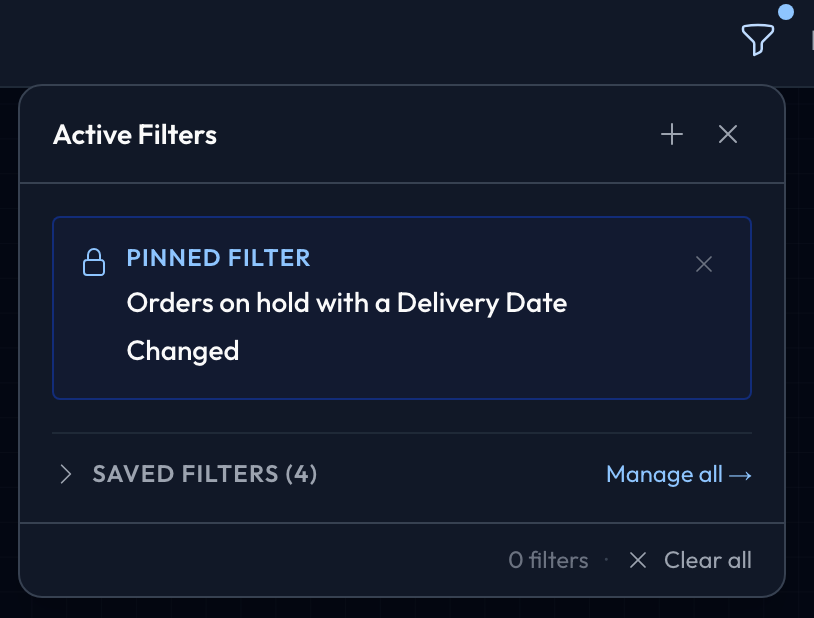
Pin from the Filters page, or with Pin active filters in the Active Filters panel footer. The pinned filter then appears at the top of the Active Filters panel as a locked chip.
At most one filter can be pinned per project, so the baseline is never ambiguous. Pinning a second one unpins the first.
Only a project admin can pin. A pinned filter changes what every member sees, which is not a decision one person should make by accident; any member can save a filter unpinned.
Unpinning
Unpin it and it stops applying automatically. It stays saved, and can be applied or re-pinned whenever you like. Unpinning never deletes anything.
Saved or pinned?
| Saved filter | Pinned filter | |
|---|---|---|
| Applies automatically? | No — apply it when you want it | Yes, project-wide |
| How many? | As many as you need | At most one per project |
| Who can create it? | Any project member | Project admins only |
| Shown as | An entry in Saved filters | A locked chip in the filter panel |
| Use it for | Scenarios you return to | The scope everyone should start from |
Swipe to see the rest of the table
Example: an order-to-cash setup
Pinned: "Completed orders" — so maps and variants exclude in-flight cases unless somebody unpins it deliberately.
Saved, applied as needed:
- "High-value (order value over 10,000)"
- "Blocked at some point"
- "Took longer than 14 days"
Everyone starts from the same baseline and layers on whichever question they are asking, without rebuilding anything or quietly disagreeing about what "completed" means.
Working well with saved filters
Pin the baseline, save the rest. A pinned filter should be scope everyone agrees on — completed cases, a region, this financial year. Exploratory filters belong saved and unpinned.
Keep the pinned one conservative. It affects everybody and everything, and it is easy to forget it is there. If a number ever looks impossible, check the pinned chip first.
Write the description. A saved filter without one is a personal shortcut. With one, it becomes something the team can use without asking you what it means.
Next steps
- Filters & Exploration — build the filters you save
- Collaboration — share an analysis with your team
Agree it once
The value of a saved filter is not the clicks it saves; it is that everyone means the same thing by "high-value" and "completed". Name the cohorts your team argues about, and the arguments stop.